Using Visual Studio Code (VS Code) on Web Browser with PLEIADES
Important Notes:
- We recommend avoiding the use of VS Code Remote SSH from your local machine. Connecting via SSH directly from the VS Code desktop application can lead to significant resource contention on login nodes due to multiple background processes (e.g., language servers, file watchers).
- This guide describes how to use VS Code via
code-serverin a web browser environment. This ensures that all workloads run on compute nodes and avoids unnecessary load on login nodes. - Ensure that you are connected to the Wuppertal University VPN before starting.
Step 1: Configure OpenSSH (one-time setup)
Add the following to your ~/.ssh/config file:
Host fugg1 fugg2
    Hostname %h.pleiades.uni-wuppertal.de

Match Host fugg1.pleiades.uni-wuppertal.de,fugg2.pleiades.uni-wuppertal.de
    User user
    IdentityFile ~/.ssh/pleiades
    ControlMaster no
    ControlPath ~/.ssh/control-%h-%p-%r
    ControlPersist 2h
Step 2: Connect to the Login Node
From your local terminal:
ssh fugg1
Step 2.1: Allocate an Interactive Compute Node
Example:
srun --ntasks=1 --nodes=1 --partition=short --cpus-per-task=2 --time=00:30:00 --pty /bin/bash
Hint: Choose the SLURM parameters (e.g.,
--cpus-per-task,--partition) as required.
Check job status:
squeue --me
Example output:
             JOBID PARTITION     NAME     USER ST       TIME  NODES NODELIST(REASON)
          19252299    normal     bash     user  R      00:02      1 wn21101
Take note of the compute node hostname (e.g., wn21101), as it will be required in the next step.
Step 2.2: Start the code-server on the compute node
Load the required module:
module load 2025 code-server/4.105.1
Run the following command on the compute node:
PASSWORD=test code-server --bind-addr 0.0.0.0:8080 --auth password
Note:
- We recommend configuring the
PASSWORDvariable for additional security.- If password protection is not enabled, other users may gain access to your account and data.
- Replace
testwith a secure password.- Port
8080is used for access via SSH port forwarding from your local machine.
Terminal Output:
[user@wn21101 software]$ PASSWORD=test code-server --bind-addr 0.0.0.0:8080 --auth password
[2026-04-09T21:29:16.860Z] info  code-server 4.105.1 811ec6c1d60add2eb92446161ca812828fdbaa7f
[2026-04-09T21:29:16.926Z] info  Using user-data-dir /common/home/user/.local/share/code-server
[2026-04-09T21:29:16.959Z] info  Using config file /common/home/user/.config/code-server/config.yaml
[2026-04-09T21:29:16.959Z] info  HTTP server listening on http://0.0.0.0:8080/
[2026-04-09T21:29:16.960Z] info    - Authentication is enabled
[2026-04-09T21:29:16.960Z] info      - Using password from $PASSWORD
[2026-04-09T21:29:16.960Z] info    - Not serving HTTPS
[2026-04-09T21:29:16.960Z] info  Session server listening on /common/home/user/.local/share/code-server/code-server-ipc.sock
Security Note:
- Binding to
0.0.0.0exposes the service on all network interfaces.Always use authentication (
--auth password) to prevent unauthorized access.- Without proper authentication, the service may be accessible to other users within the network.
- If an attacker gains access (e.g., by discovering the port and password), they can control the VS Code session and execute commands with your user privileges, potentially compromising your account, data, and running jobs.
Step 3: Access VS Code from Your Local Machine
On your local machine, open a new terminal and run:
ssh -L 8080:wn21101:8080 fugg1
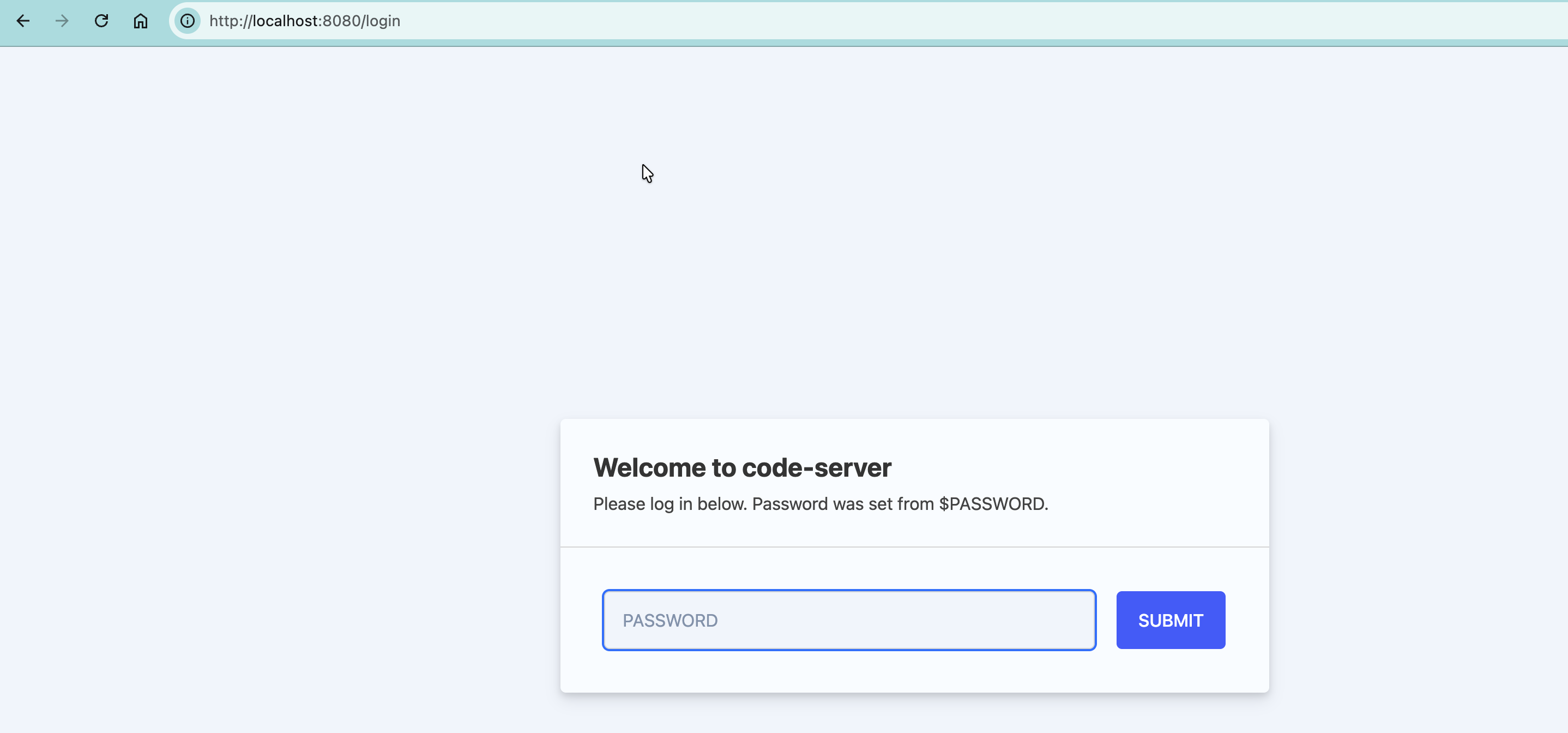
Replace wn21101 with your allocated compute node. Ensure this SSH session remains active while using VS Code in your browser. Then open a browser and navigate to http://localhost:8080.
Warning: Do not use
0.0.0.0in the browser URL.
- The address
0.0.0.0is used by services to bind all network interfaces, but it is not a valid destination address for client connections.- Always use
http://localhost:8080after establishing the SSH tunnel.
Enter the password:
- either from
~/.config/code-server/config.yaml - or the one set using
PASSWORDvariable.
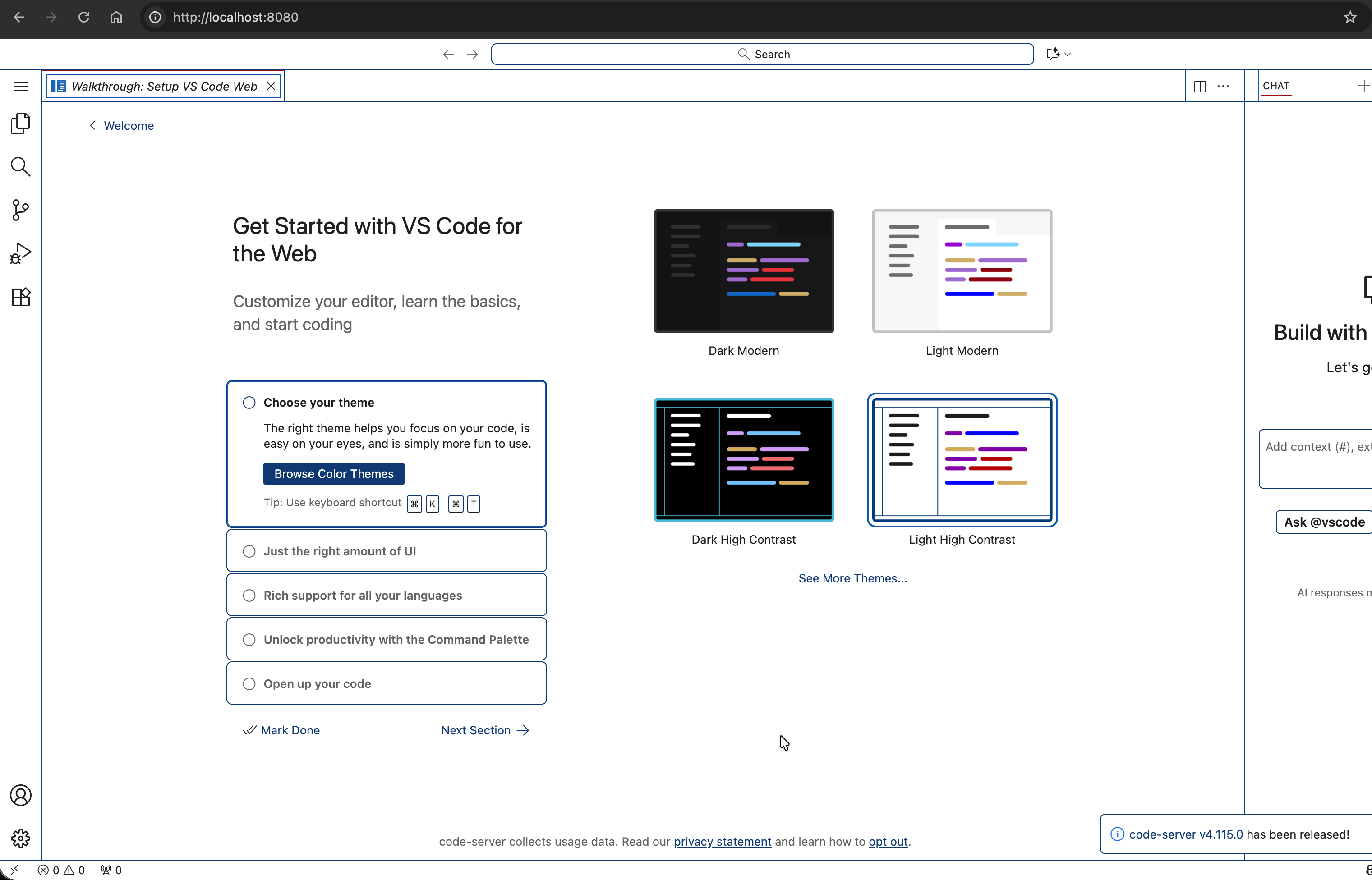
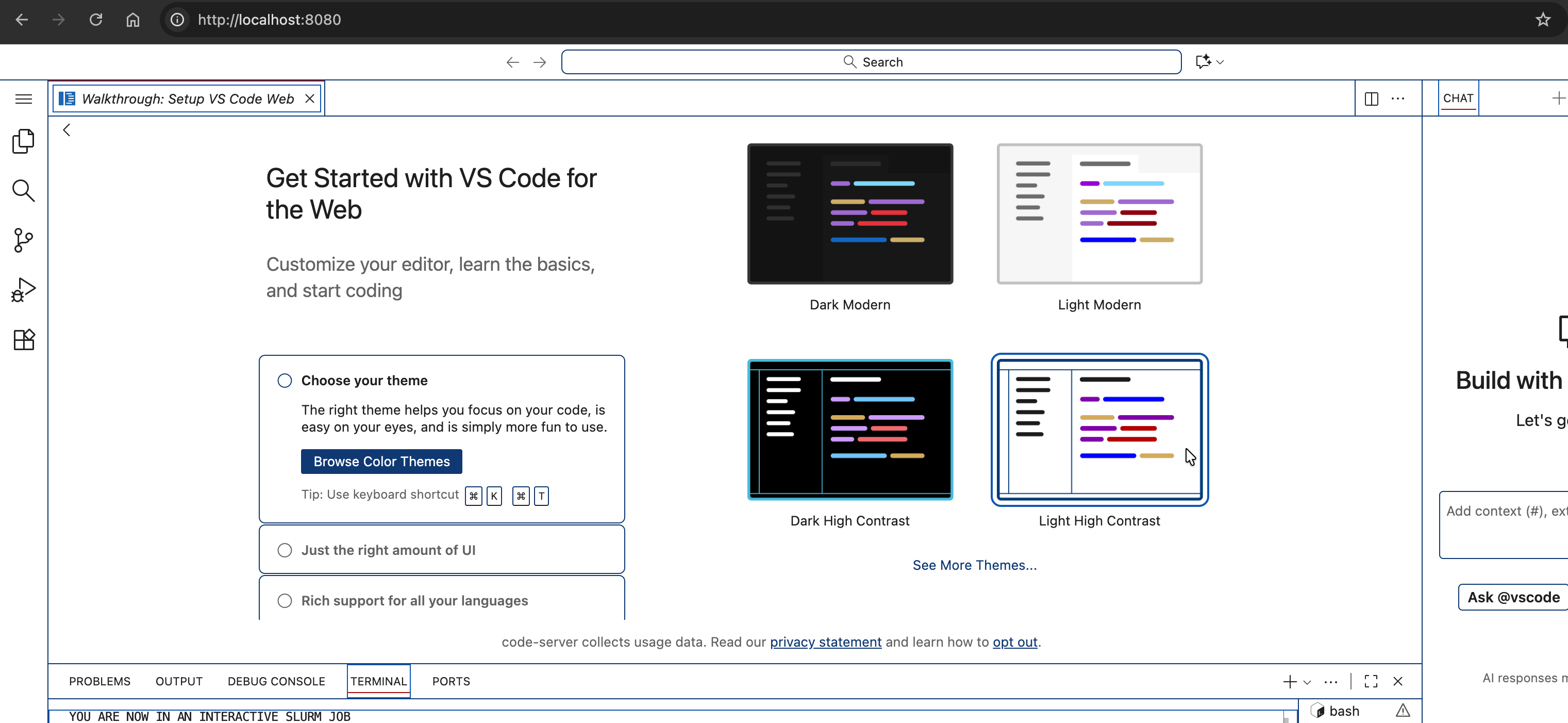
After authentication, the VS Code Interface will be available in your browser.
Step 4: Terminate the Session
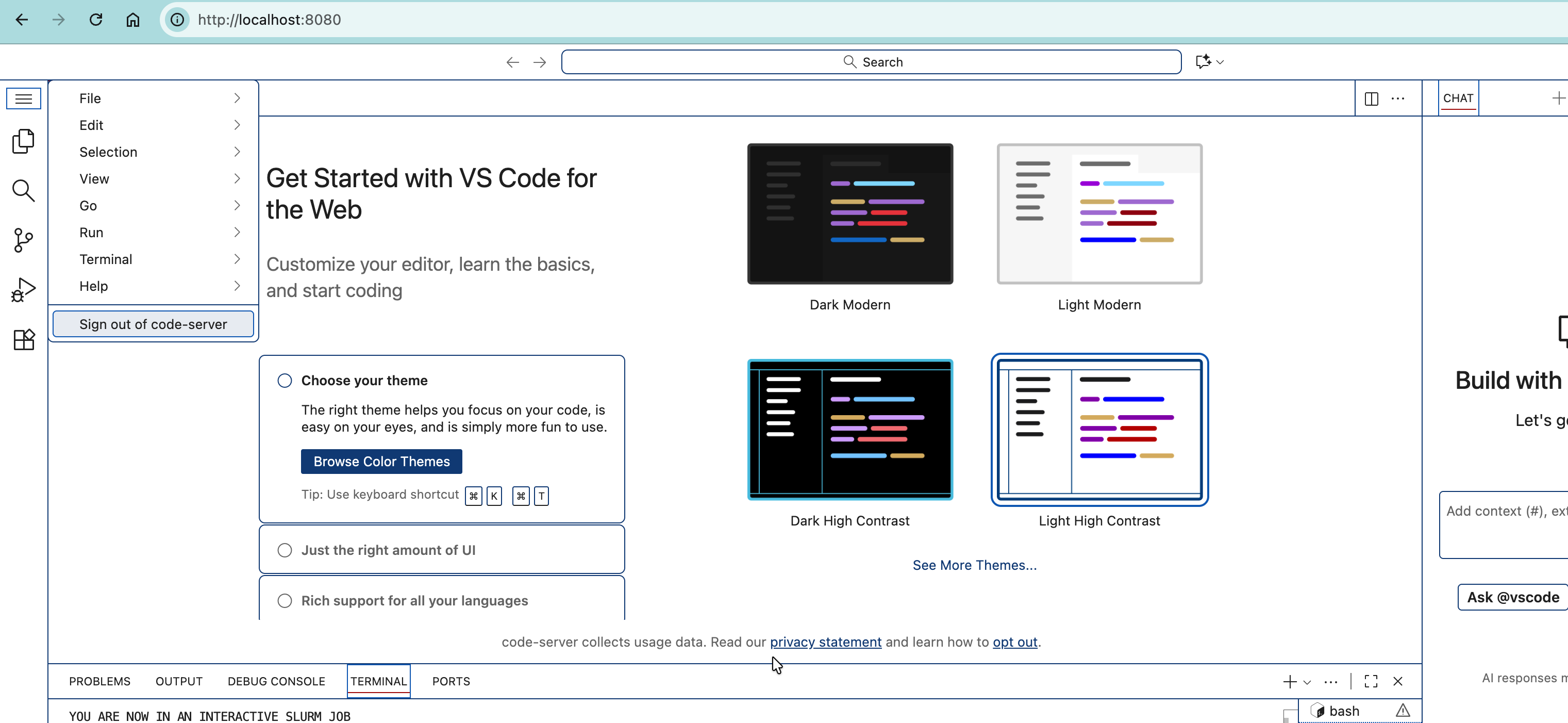
- To logout: Use “Sign out of code-server” from the application menu.
- To stop the service: Press
Ctrl + Cin the terminal runningcode-server. - To exit the compute node: Run the command
exiton the terminal to make it available for other users.
Summary
- VS Code runs on compute nodes
- Login nodes act only as SSH gateways
- Resource usage is controlled via SLURM
- No unnecessary load is placed on login nodes
Key Takeaway
VS Code workloads should be executed on compute nodes (
wn*) usingcode-server; login nodes (fugg*) are intended only for access and orchestration. Using compute nodes helps avoid job interruptions or terminations due to resource constraints (e.g., memory limits) on login nodes.